# Capturas de Pantalla
## Tareas
{% tabs %}
{% tab title="Foto 1" %}
**Vista general de tareas por proyecto**
En esta pantalla puedes ver de un vistazo todo lo que está pasando en el proyecto: qué tareas están en proceso, cuáles quedan pendientes y cuáles ya se han completado. También tienes a mano las fechas límite, las prioridades y los responsables, para que tengas siempre claro qué se está haciendo y qué viene después.
{% endtab %}
{% tab title="Foto 2" %}
**Acciones rápidas en fechas y prioridades**
Aquí puedes cambiar la fecha de vencimiento o la prioridad de una tarea en un segundo. El menú te permite reaccionar rápido ante cambios, reorganizar el trabajo y mantener el proyecto siempre en orden sin pasar por pantallas complicadas.
{% endtab %}
{% tab title="Foto 3" %}
**Actualización del progreso de la tarea**
Esta vista te deja marcar de forma muy visual cuánto avanza una tarea: desde empezar a trabajar en ella hasta completarla por completo. Actualizar el progreso es inmediato y te ayuda a llevar un seguimiento real de cómo va el proyecto.
{% endtab %}
{% tab title="Foto 4" %}
**Asignación de responsables**
En este punto puedes elegir quién se encarga de cada tarea. Solo tienes que buscar a la persona del equipo y asignarla. Es una forma rápida y clara de mantener las responsabilidades bien definidas y evitar confusiones.
{% endtab %}
{% endtabs %}
## Pymes
***
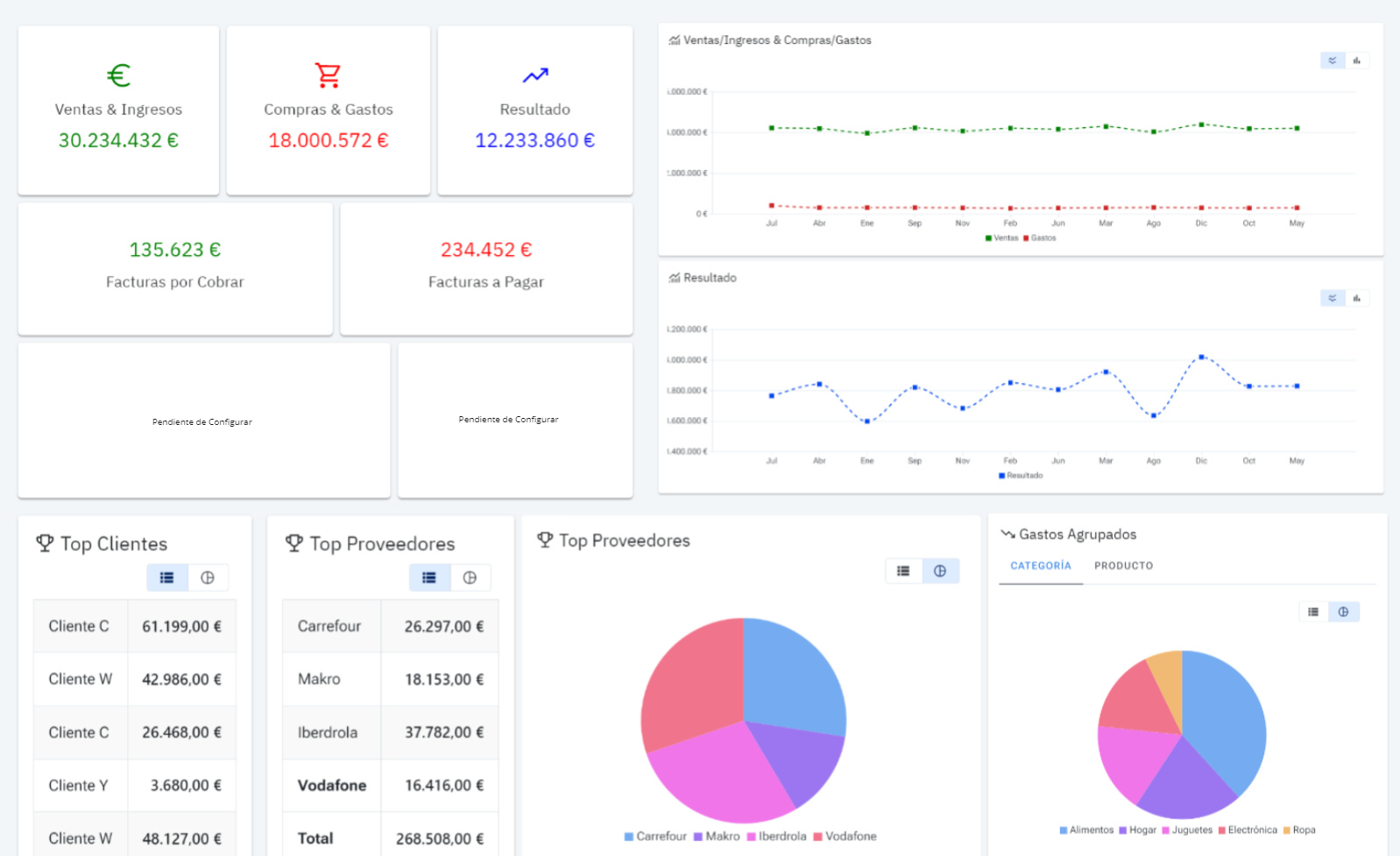
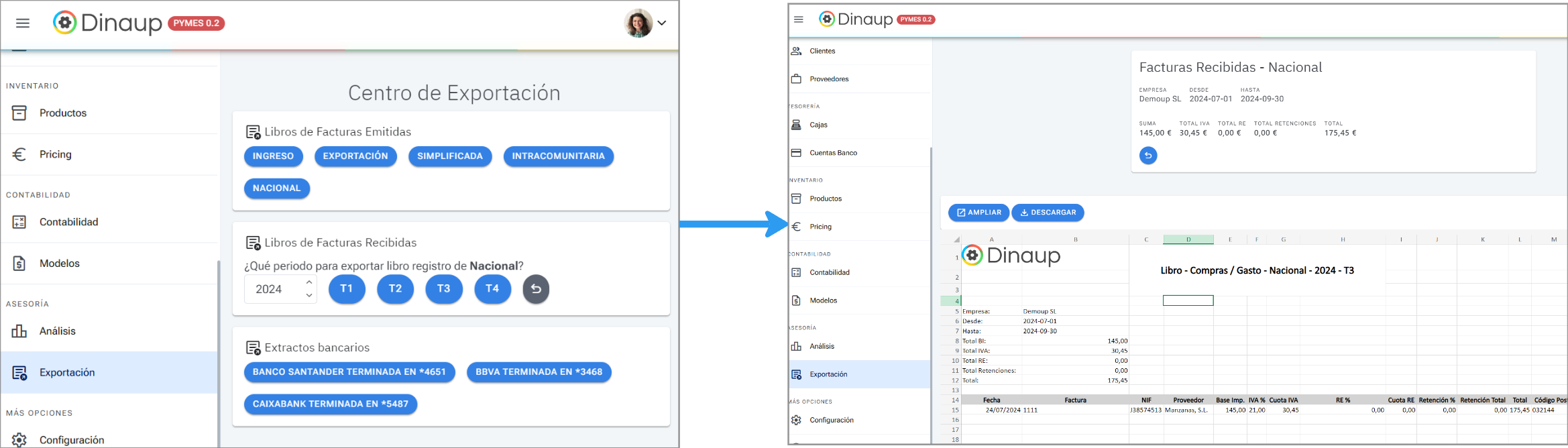
#### Exporta en Excel Ventas, Compras y extractos bancarios
## Recursos Humanos
## Área de Empleados
***
***
El empleado puede ver sus vacaciones y estado
***
Desde el portal de empleado puede editar sus fichajes
***
La edición de fichaje deja un registro para poder auditar los cambios
---
# Agent Instructions: Querying This Documentation
If you need additional information that is not directly available in this page, you can query the documentation dynamically by asking a question.
Perform an HTTP GET request on the current page URL with the `ask` query parameter:
```
GET https://doc.dinaup.com/producto/pymes/capturas-de-pantalla.md?ask=
```
The question should be specific, self-contained, and written in natural language.
The response will contain a direct answer to the question and relevant excerpts and sources from the documentation.
Use this mechanism when the answer is not explicitly present in the current page, you need clarification or additional context, or you want to retrieve related documentation sections.